
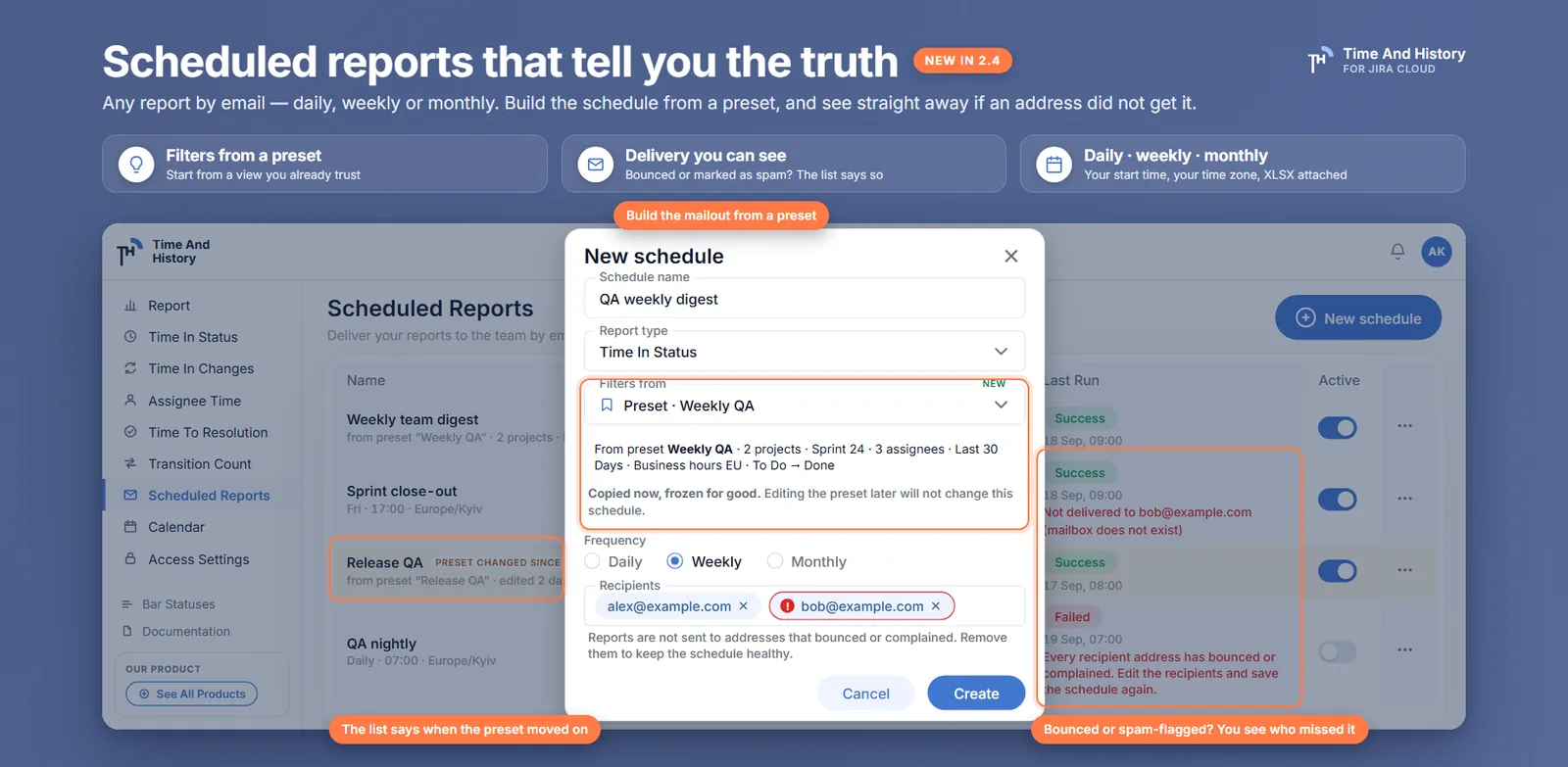
Six weeks after you set up the Monday report, somebody mentions in passing that they have never received it. You check the schedule: active, green, twelve successful runs. You check Export History: twelve files, all built. Everything the app can tell you says the report went out, and yet one of the ten people it goes to has a clean inbox.
This is the characteristic failure of scheduled Jira reports by email, and it is not really an email problem — it is an observability problem. The mail left the building; the app considered its job done; the address rejected it somewhere downstream and nobody was watching. Version 2.4.0 of Time And History closes that loop: when a recipient's address bounces or marks the report as spam, it is flagged on the run and on the recipient, in plain words. This covers what you now see, what each case means, and what a Jira admin should actually do about it.
What a scheduled Jira report is, briefly
If you have not set one up yet: any of the five reports — Time in Status, Assignee Time, Time to Resolution, Time in Changes or Transition Count — can go out daily, weekly or monthly, at a start time and time zone you pick, with the XLSX attached, to up to ten recipients you type yourself. Nobody is subscribed implicitly. Every run lands in Export History next to your hand-started exports, so the file is recoverable even by someone who deleted the mail.
Two rules that shape everything else:
- A run collects as the schedule owner. Recipients see the owner's view of Jira, not their own. That is what makes it possible to mail a report to someone without a Jira licence, and it is also why the owner should be someone whose access matches the audience.
- The filters are frozen into the schedule when you create it — or taken from a preset, which records where they came from. A Monday email does not change meaning because somebody edited a report page on Friday. The one exception is a schedule built on a Jira saved filter: it stores the filter, not its query, and re-reads it on every run.
The failure nobody sees
Email has two ways of not arriving, and neither of them is an error at the moment of sending.
A bounce is the receiving server refusing the message: the mailbox does not exist, the domain is gone, the address was mistyped when the schedule was built. A complaint is a person clicking "this is spam". In both cases the sending side finds out afterwards, asynchronously, through a feedback channel — and in most tools that feedback goes into a log nobody reads, which is why "the schedule says success" and "I never got it" can both be true.
There is also a third case that looks identical from the inbox and is completely different underneath: a transient bounce — a full mailbox, a server having a bad afternoon, a greylisting rule. That one is temporary and the address is fine.
What the schedule list shows you now
Three things, at the two places you would look.
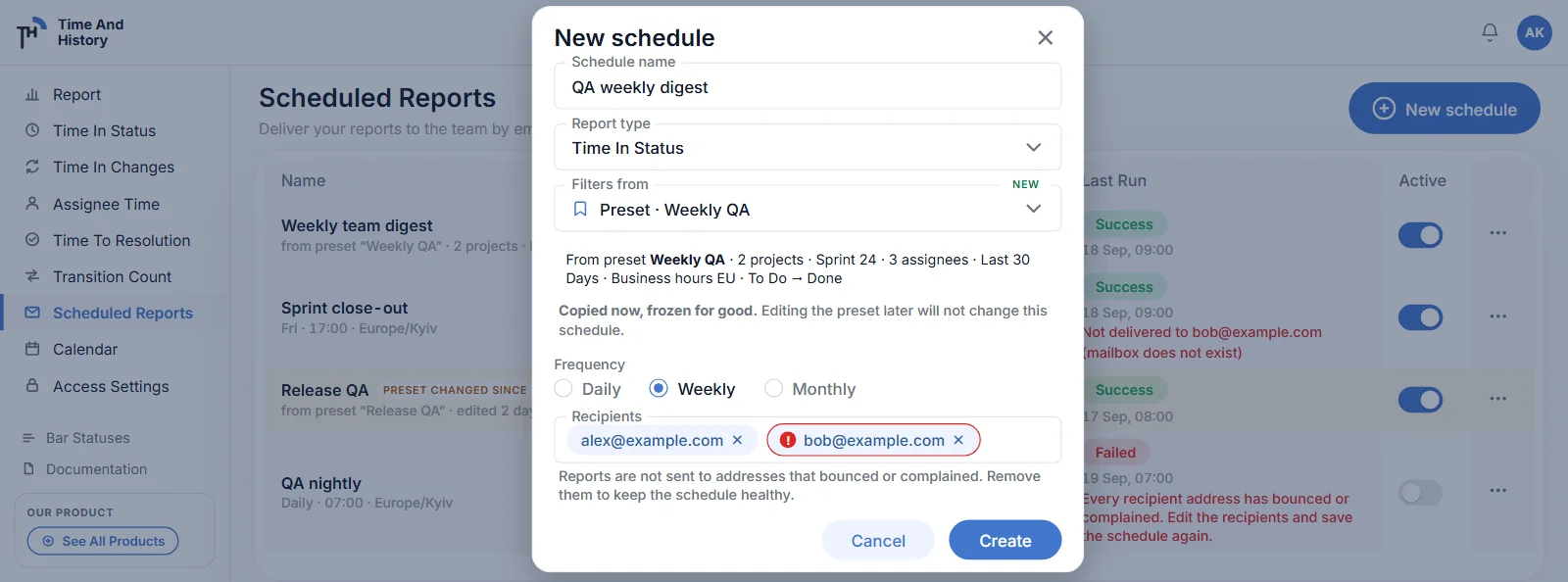
- A ring on the recipient. The avatar of an address that bounced or complained gets a red ring and a small
!. Hovering it gives the date and the instruction: "Not delivered — bounced on 18 Sep 2026. Remove this address or ask the person to fix their mailbox." For a complaint the wording changes, because the remedy does: "marked our email as spam… Remove this address — we cannot mail it again." - A line under the run. Beneath the last-run lozenge: Not delivered to [email protected] (mailbox does not exist). The reason in brackets is printed when every listed address failed the same way; where reasons differ, the breakdown is in the tooltip. Long lists are trimmed to two addresses and "and 3 more" so the row stays readable.
- The same warning while you edit. Open the schedule and the affected recipient chip carries the badge, with a line under the field: "Reports are not sent to addresses that bounced or complained. Remove them to keep the schedule healthy." Save stays enabled — you are being told, not blocked.
One honest point about scope: this feature reports non-delivery. It tells you when a message did not get through and why. It is not a read receipt and it does not put a green tick next to the nine addresses that were fine — silence still means the mail was accepted by the receiving server, which is as much as any sender can truthfully claim.
The three cases, and what to do about each
| What you see | What happened | What to do |
|---|---|---|
| (mailbox does not exist) or (rejected) | A permanent bounce. The address is wrong, gone, or refusing mail from us outright. Future runs skip it. | Fix the address: remove it from the schedule and add the correct one. Chasing the person's IT team rarely helps — the address is usually just wrong. |
| (marked as spam) | A complaint. Somebody clicked the spam button. The address is blocked from now on, deliberately and permanently. | Remove the address. Talk to the person: if they still want the report, a different address — or Export History — is the route. Re-adding the same one will not start it working again. |
| (temporary bounce, will not retry) | A transient bounce: full mailbox, a server hiccup. The address is not blocked and the next run will try again. | Usually nothing. If it repeats every week, treat it as a real problem and talk to the recipient. |
A run where some recipients got the file and others did not stays Success, with the undelivered line underneath it. That is the accurate description — the report was built, the mail was sent, and part of it did not land — and a red run status would hide a working schedule behind a delivery problem.
The undelivered line also persists into later runs. Once an address is blocked, every subsequent run lists it as not delivered, with the reason that blocked it. You do not get one warning and then silence.
When a schedule switches itself off
There is exactly one case where the app stops the schedule rather than warning you: every recipient address has bounced or complained. With nobody left to mail, the run fails, the schedule is deactivated, and it says so in plain words on the row — "Every recipient address has bounced or complained. Edit the recipients and save the schedule again."
That is the whole rule. A schedule with nine working addresses and one dead one keeps running forever.
What the app will not do
Three deliberate absences, because knowing them is what makes the warnings useful.
- It never retries a bounced address. There is no "try again" button and no automatic second attempt, for the same reason every serious sender behaves this way: repeatedly mailing an address that rejects you damages the reputation of the sending domain for everybody else on it. The owner's action is to remove the address.
- There is no unblock button. Complaints in particular are never reversed — someone who marked the report as spam has said what they want. A permanent bounce that was genuinely a mistake needs a support request, not a toggle.
- It does not guess at replacements. Nobody is added to your recipient list implicitly, before or after a failure. Ten addresses is ten addresses you typed.
A five-minute audit for a Jira admin
Worth doing once, then once a quarter.
- Open Scheduled Reports and scan for red. Rings on avatars, red sub-lines under runs, and any row whose status is inactive with a reason.
- Fix the addresses, not the schedules. Most flags are a typo made months ago. Remove the flagged address and add the correct one — re-adding the same address changes nothing, because the block is on the address.
- Check the owner of each schedule. A run collects with the owner's Jira access — so a schedule owned by someone who has since changed teams may be mailing a narrower or wider cut than the audience expects. If in doubt, rebuild the schedule under an owner whose access matches its audience.
- Check the attachment size. A file over 7 MiB is not attached; the mail points the recipient at Export History instead. If a report has grown past that, narrow its scope — a JQL or saved-filter scope is usually the cleanest way — or split the schedule.
- Check what people actually need. Ten recipients on a weekly XLSX is sometimes the right answer and sometimes a sign that the number wants to be on a dashboard gadget instead, where nobody has to receive anything.
Scheduled Jira reports by email FAQ
How do I know whether my scheduled Jira report was delivered?
Open Scheduled Reports. An address that bounced or marked the report as spam gets a red ring on its avatar with the date and reason on hover, and the run itself gets a line reading Not delivered to … with the reason in brackets. Addresses with no flag were accepted by the receiving mail server — the feature reports non-delivery rather than issuing read receipts.
Why did my Jira report email bounce?
Three common reasons, and the app names them. Mailbox does not exist means the address is wrong or has been closed. Rejected means the receiving server refused the mail for its own reasons. Temporary bounce means something transient — a full mailbox or a server problem — and the next run will try that address again.
Can I resend a scheduled report to someone who did not get it?
Not by retrying the address: bounced and complained addresses are permanently skipped, and there is no retry control. The practical routes are to correct the address on the schedule, or to download the file from Export History and send it yourself — every scheduled run is stored there alongside your manual exports.
Does one bad address stop the whole report?
No. A run where some recipients received the file and others did not is still recorded as a success, with the undelivered addresses listed under it. Only when every address on the schedule is blocked does the run fail, and in that case the schedule is deactivated with an explicit message telling you to edit the recipients.
Can I schedule any Jira report, or only Time in Status?
Any of the five — Time in Status, Assignee Time, Time to Resolution, Time in Changes and Transition Count — daily, weekly or monthly, at a time and time zone you choose, to up to ten recipients, with the XLSX attached and every run listed in Export History. Filters are frozen into the schedule when you create it, or taken from a preset.
Do recipients need a Jira licence?
No. The report is collected with the schedule owner's Jira access and mailed as a file, so anyone with an email address can receive it — which is the point. It also means the owner's access defines what recipients see, so pick an owner whose view matches the audience.
Is this included in the free plan?
Yes. Time And History is free for Jira sites with up to 10 users, scheduled reports and delivery status included; larger sites are on the paid plan, which starts with a free trial from the Marketplace listing. Checked 20 September 2026 — the listing carries the current terms.
Check the one schedule you trust most
Open the schedule that most people depend on and look at the avatars. If any of them carries a ring, somebody has been quietly out of the loop for weeks — and the fix is thirty seconds of editing, not an investigation.
Scheduled reports cover all five reports in Time And History for Jira Cloud, each counted in business hours against your work calendar and exportable to XLSX and CSV. Install it from the Atlassian Marketplace and put your weekly number on a clock — free for up to 10 users, so the first team can try it without a purchase order. The scheduled reports documentation has the setup in full, the delivery status section the exact wording of every flag, and the export guide covers the file itself. Verified 20 September 2026.