
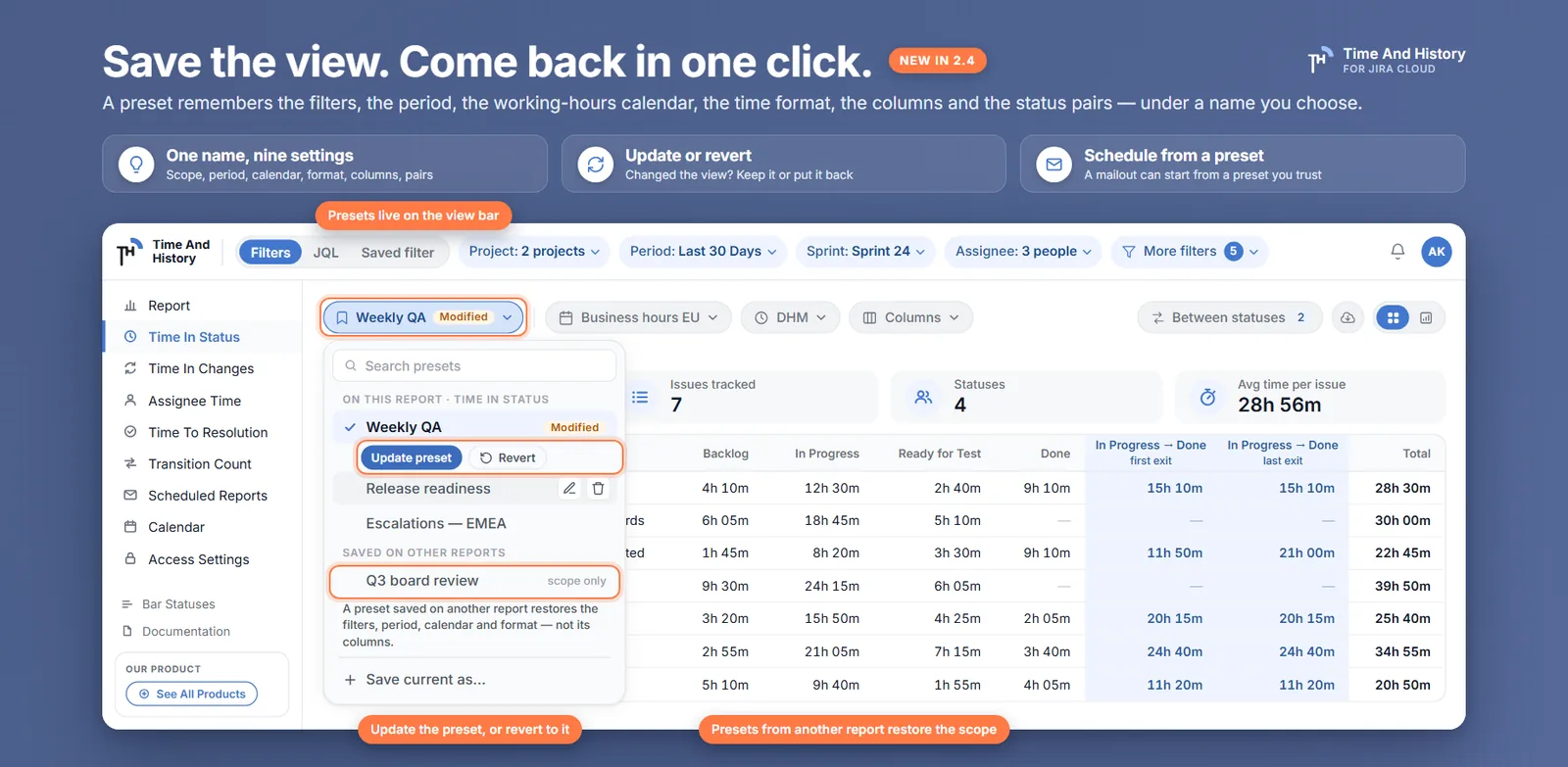
Every team that reports on Jira has the same unpaid ritual. Monday morning: open the report, pick the two projects, set the sprint, set the period to last week, switch the calendar to the one with the German holidays, change the time format because the default is not the one the stakeholder reads, re-add the three columns you care about, re-add the In Progress → Done pair. Four minutes. Then on Wednesday somebody asks about the support queue instead, you rebuild the whole thing for a different cut, and on the following Monday you start from the top.
A preset is the fix: it saves Jira report filters — and the period, the calendar, the time format and the columns — under a name you choose, and brings the whole view back in one click. This covers exactly what travels in a preset and what does not, the three states a preset can be in, and how a scheduled email report can be built from one.
What a preset remembers
A preset is a named copy of the view you are looking at. It comes in two tiers, and the difference matters the first time you apply one saved on a different report.
| What | Restored on | Note |
|---|---|---|
| Scope — filter chips, or your JQL, or the Jira saved filter you picked | any report | the eight filter chips — project, sprint, assignee, issue type, epic, reporter, labels, components — and the mode itself; the period is the next row |
| Period | any report | the relative range (last 30 days) is stored as the range, not as the dates it meant on the day you saved |
| Work calendar | any report | the business days, hours and holidays the durations are measured against |
| Time format | any report | so the file you hand over reads the way the reader expects |
| Columns / History by Fields | the report it was saved on | the field selection is global, so it is only safe to restore on its own report |
| Between Statuses pairs | Time in Status only | the pairs and their first-exit / last-exit modes |
And the deliberate omissions, which are just as useful to know:
- A preset does not navigate. It configures the page you are on; it never sends you to a different report.
- It carries no chart settings. Table or chart, donut or bar, which metric, how many rows per page — all stay as you left them. A preset is about which issues and which clock, not about how you happen to be looking at them this minute.
- A preset saved on another report gives you its scope only. The menu labels those rows
scope only, so the narrower result is visible before you click, not after.
Save your first preset
- Build the view once. Set the scope — chips, JQL or a saved filter — the period, the work calendar, the time format, the columns, and any status pairs you want.
- Open the Presets pill. It is the first control on the view bar, above the table, on all five reports.
- Choose Save current as… and give it a name. Names are yours alone and unique across your presets, so Weekly QA can only mean one thing when you see it in a schedule three months from now.
- Read the receipt before you save. The dialog lists what this preset will remember, split into the two tiers above, so there is no guessing about whether the columns came along.
- Apply it next time. The pill shows the applied preset's name; the menu groups your presets into ON THIS REPORT and SAVED ON OTHER REPORTS, with a search box above them, sorted A to Z.
Applied, modified, reverted
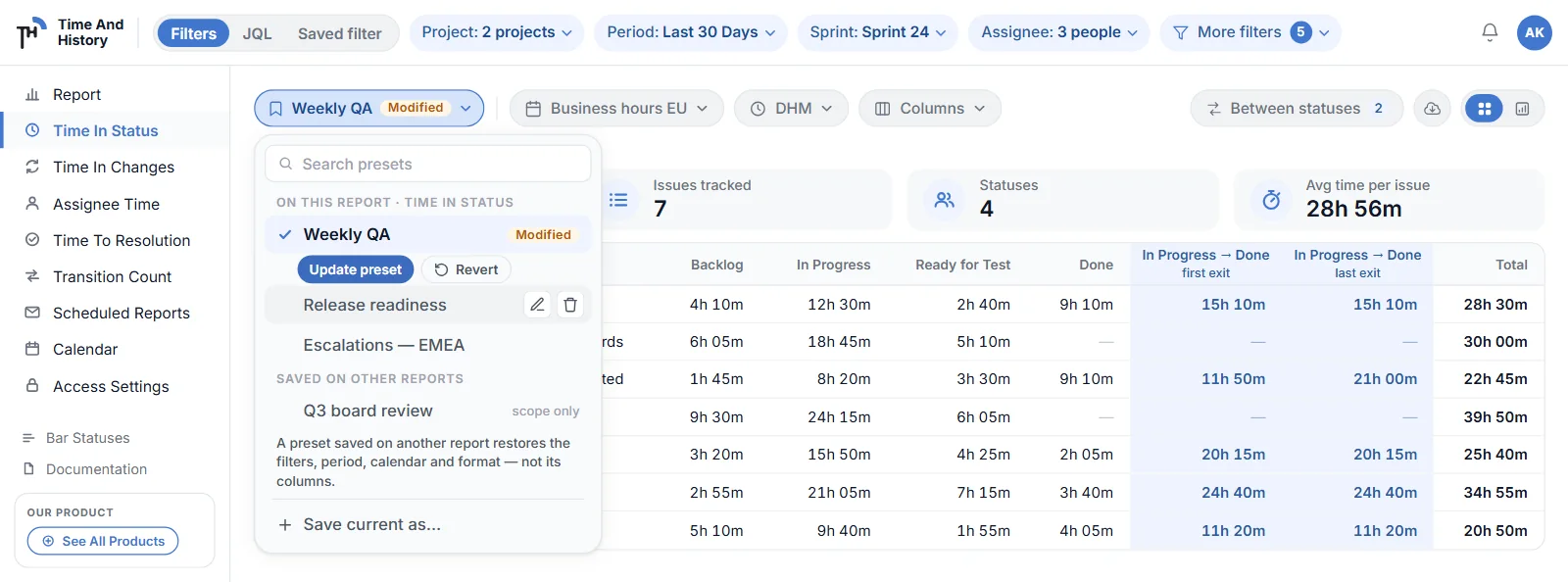
A preset has three states, and the pill tells you which one you are in.
- Nothing applied. The pill reads Presets in neutral grey. You are on whatever view you built by hand.
- Applied. The pill carries the preset's name. What you see is what was saved.
- Applied · modified. You changed something after applying — added a project, moved the period. The pill gets a Modified lozenge, and two actions appear under the preset in the menu: Update preset, which folds your change into the saved copy, and Revert, which throws the change away and puts the saved view back.
That third state is the one that earns a preset its keep. You can take Weekly QA, widen it to two sprints for one conversation, and get back to the canonical version without remembering what you changed. Drift is expected; losing the original is not.
Two things a preset does gracefully rather than loudly. If the work calendar it names has since been deleted, or the Jira saved filter it points at has been removed or unshared, applying it shows a warning and keeps your current value for that one item instead of failing the whole apply. You get the rest of the view and a sentence telling you what could not be restored.
A weekly email that is built from a preset
This is where presets stop being a convenience and start being infrastructure.
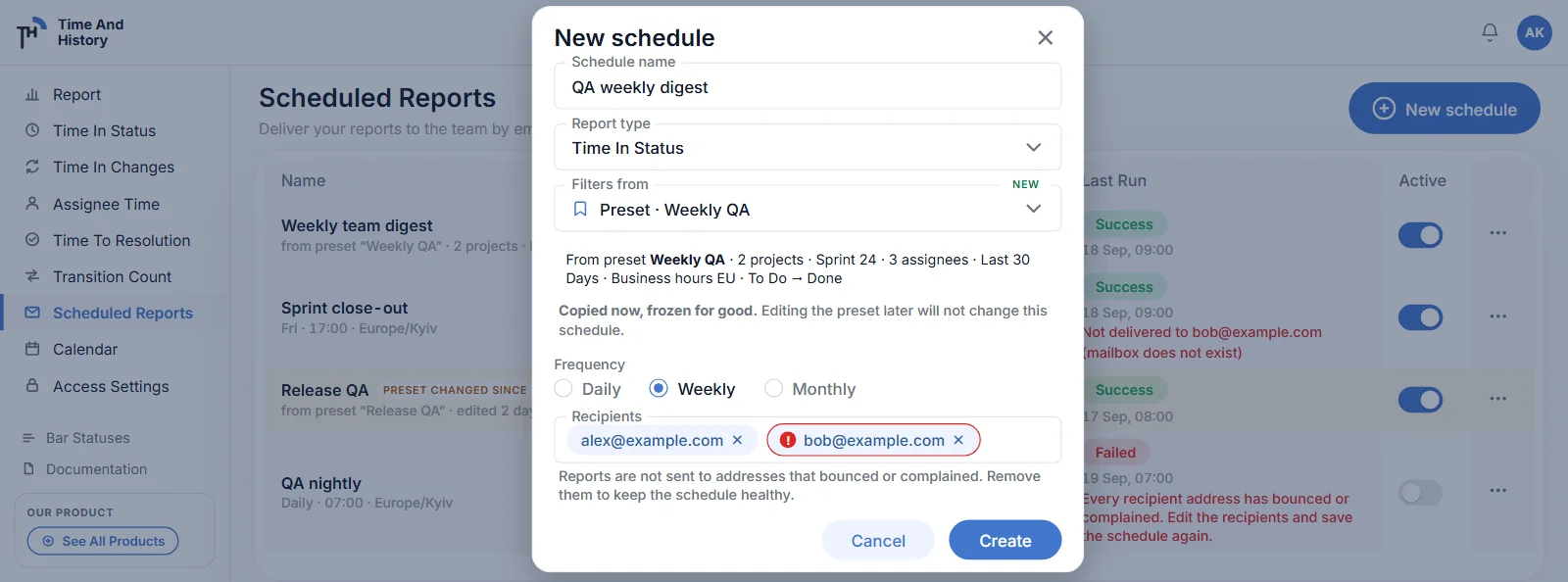
When you create a scheduled report, the editor's Filters from: control offers Current view or Preset · the preset's name. Choosing a preset copies its settings into the schedule, and the schedule remembers which preset it came from — so six months later, when nobody remembers why the Monday email covers those two projects, the schedule says so on its own row.
The copy is a snapshot, on purpose: editing a preset never silently changes what your stakeholders receive. But the list does not let the two drift in silence either. When the preset has moved on since the schedule was built, the row is badged Preset changed since, with a sub-line naming the preset and when it was edited. Open the schedule and it offers Use the preset's current filters — an explicit, one-click re-sync, on your terms rather than behind your back.
Deleting a preset does not break the schedules built from it: the delete dialog tells you how many there are and that they keep their frozen copy.
Presets are personal
Your presets are yours. They do not appear for your teammates, they do not change anyone else's report, and two people can read the same project through completely different presets at the same time without either being wrong.
That is how 2.4.0 ships, and it is worth being clear about it: there are no shared or team-wide presets in 2.4.0. If you want a colleague to see the same numbers, the honest routes are the ones that already exist — send them the export, or put them on a scheduled report, which delivers the same XLSX to up to ten people on a clock. What a preset saves you is the rebuilding, not the distribution.
The limits worth knowing
- Fifty presets per person. Enough for a real portfolio of views; small enough that the menu stays readable.
- Names are unique for you, case-insensitively, across all five reports. You cannot have weekly qa on Time in Status and Weekly QA on Assignee Time.
- No dashboard gadget takes a preset. The gadgets cover all five reports but carry their own configuration; presets configure report pages.
- A preset is not a permission. It restores a view; it does not grant access to anything. Everything the report shows is still filtered by what you can see in Jira.
Save Jira report filters FAQ
Can I save filters on a Jira report and reuse them?
Yes. Open the Presets pill on the view bar of any of the five reports, choose Save current as…, name it, and the scope — chips, JQL or a Jira saved filter — plus the period, work calendar, time format, columns and status pairs come back in one click. Presets are personal to you, and you can keep up to fifty.
What is the difference between a preset and a Jira saved filter?
A Jira saved filter is a query: it decides which issues. A preset is a report view: it can hold a saved filter as its scope, but it also remembers the period, the work calendar, the time format, the columns and any status pairs. Put another way, a saved filter answers "which tickets", and a preset answers "which tickets, on which clock, shown how".
Do my presets appear for my teammates?
No. Presets are personal in 2.4.0 — yours are invisible to everyone else and change nobody else's report. To put the same numbers in front of other people, use an export or a scheduled email report, which sends the same XLSX to up to ten recipients on a daily, weekly or monthly clock.
What happens if I change a report after applying a preset?
The pill gains a Modified lozenge and offers two actions: Update preset writes your change into the saved copy, and Revert discards it and restores the saved view. Nothing is written to the preset until you choose one, so experimenting is free.
If I edit a preset, do my scheduled reports change?
No. A schedule copies the preset's settings when you create it and keeps that copy, so the email your stakeholders receive never changes meaning because you edited a view. The schedule list badges the row Preset changed since when the preset has moved on, and opening the schedule offers Use the preset's current filters — but only when you say so.
Is this on the free plan?
Yes. Time And History is free for Jira sites with up to 10 users, presets included, with no separate tier for them; larger sites are on the paid plan, which starts with a free trial from the Marketplace listing. Checked 20 September 2026 — the listing carries the current terms.
Save the view you rebuild most
Pick the report you open every Monday, set it up the way you always do — one last time — and save it as a preset. Then build the weekly email from that preset rather than from the current view, so the schedule carries its own provenance. The next time someone asks why the Monday mail covers what it covers, the answer is on the row instead of in your memory.
Presets work on all five reports in Time And History for Jira Cloud — Time in Status, Assignee Time, Time to Resolution, Time in Changes and Transition Count — each counted in business hours against your work calendar. Install it from the Atlassian Marketplace and save your Monday view — free for up to 10 users, so the first team can try it without a purchase order. The presets documentation has the full rules, the reports and filters documentation covers the scope itself, and the export guide covers getting the numbers out. Verified 20 September 2026.