
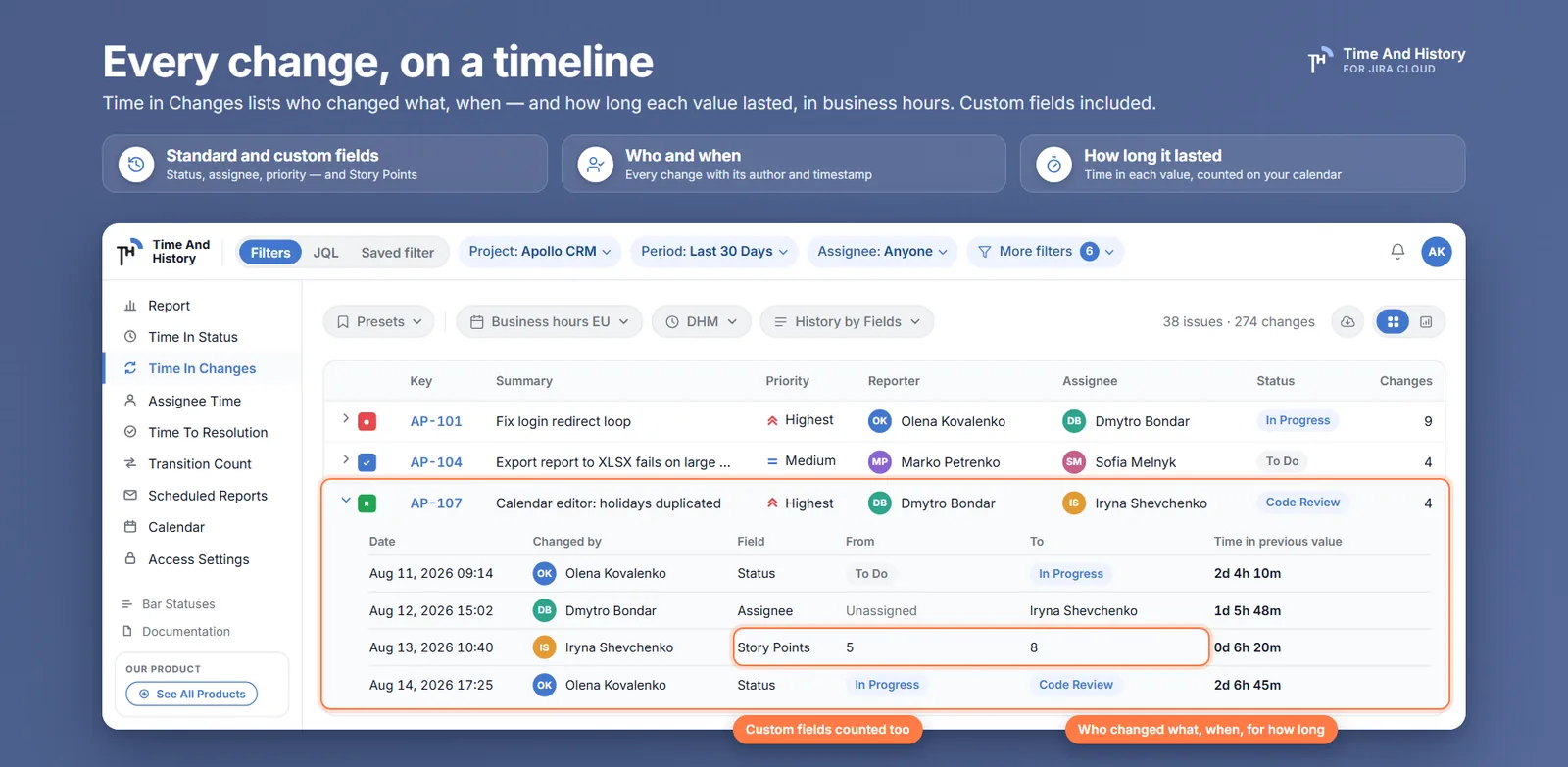
The sprint review reaches the burndown and somebody says the number moved. Not the work — the estimate. Two stories that went in at 5 came out at 8, and nobody in the room can say when that happened or who did it, so the conversation becomes a guess about process instead of a fact about two tickets.
Jira knows the answer. It has known it all along: every change to Story Points, to a custom select field, to a date field, is written into the issue's changelog with a timestamp and an author. Jira custom field history is a storage problem that was solved years ago and a reporting problem that was not: nothing reads it across more than one issue at a time, or tells you how long a value held before it changed.
This covers what the changelog actually keeps, why JQL cannot query it, and how to read custom field history — Story Points included — as a report with who, when, from what, to what, and for how long.
Jira records custom field changes; it just never reports them
Open any issue, go to Activity, switch to History, and you will find the rows: Iryna Shevchenko changed Story Points from 5 to 8, 14 September. That is the raw truth and it is complete.
It is also stuck there, for three reasons.
- One issue at a time. "Who changed the points on PHX-142" takes a minute. "Which stories in this sprint were re-estimated after the sprint started" does not scale from a per-issue tab.
- No durations. The changelog records the moments of change, never the intervals between them. That a field held the value Blocked for eleven working days is a fact the data supports and the interface never states.
- Everything is interleaved. Status moves, assignee changes, description edits and your custom field share one list in one order, so reading the story of a single field means scrolling past everything else. The status change history post covers the same friction from the status side.
Why JQL cannot answer this
This is worth knowing before you spend an afternoon on it, because the search box looks like it should help.
Jira's history operators — WAS, WAS NOT, WAS IN, WAS NOT IN and CHANGED — work on exactly six fields: status, assignee, reporter, priority, resolution and fix version. That list is in Atlassian's JQL operators reference and it does not include a single custom field. Story Points CHANGED is not a query you can write.
And even on the six it does cover, JQL returns issues, never durations. It answers which tickets, never for how long — which is true of JQL as a whole, and is the reason the reporting side of this job has to happen somewhere else.
Read custom field history as a report
The Time in Changes report in Time And History reads the changelog into a table. Since version 2.4.0 it covers custom fields — Story Points, and any other field Jira writes into the issue changelog — alongside the standard ones.
- Open the report. From the Jira top bar, Apps → Time And History, then Time in Changes.
- Set the scope. Project and period in the header, or a sprint, epic, label or component — or paste the JQL you already use; the report scope documentation has the modes and limits. The same header drives all five reports.
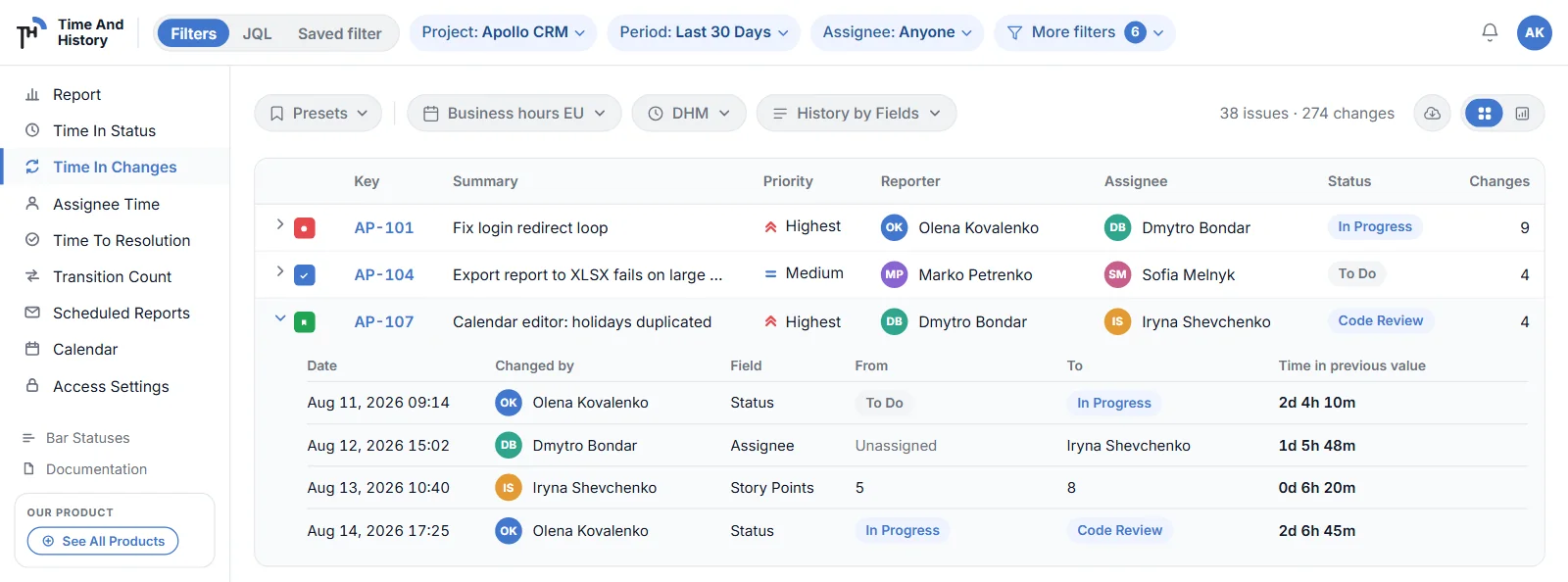
- Pick the fields. The History by Fields control on the view bar decides which fields appear in the drill-down. Add Story Points, or your own custom field, and remove the ones you do not care about — otherwise a busy issue's history is mostly noise about summary edits.
- Expand an issue. Its history opens grouped by field: each change on its own row with the date, who made it, the previous value, the new value, and how long the previous value held.
- Read the last row of a field. It is the current value, with the time since the last change — so you can see at a glance that Blocked has been true for nine working days.
Three questions this actually answers
- Did the estimate move after the sprint started? Filter to the sprint, put Story Points in History by Fields, and read the change rows. A re-estimate mid-sprint is not necessarily wrong — but it is the difference between a team that under-delivered and a team whose target moved, and those deserve different retrospectives.
- How long do tickets sit at a value nobody wants? A custom Blocked reason or Waiting on field is a queue in disguise. The time-in-value column turns it into a number, per issue, on your calendar.
- Is a field being maintained at all? If a field's only row on most issues is its creation value, nobody is updating it, and the dashboard built on it is decorative. That is worth knowing before the next planning cycle depends on it.
The same rows are available on the ticket itself: the Time And History panel on the issue view has a Time in Changes mode listing each field with how many times it changed and how long the current value has held.
Limits worth knowing before you promise anything
Four, and the first is the big one.
- If Jira did not log the change, nothing can report it. The report reads the changelog; it does not reconstruct history from anywhere else. Fields written at creation without a change event, or values set by an integration that bypasses the changelog, leave no trail — and no tool on the Marketplace can invent one. Check one issue's History tab before you build a process on a field.
- The drill-down is grouped by field, and that is the only arrangement. Each field lists its changes oldest to newest. There is no grouping by the person who made the change and no sort control on that table; if you need a different cut, export it.
- Times per field are not summed. Adding up how long a field held each of its values produces a number that means very little, so the report does not print one. Per-value durations are what the data supports.
- The gadget counts, it does not list. Time in Changes has a dashboard gadget like every other report, and it counts changes per selected field; the row-by-row drill-down is a report-page feature. To put field history in front of people who do not open the app, use an export or a scheduled email report.
Jira custom field history FAQ
Does Jira keep a history of custom field changes?
Yes. Every change Jira writes to the issue changelog — including most custom fields — is recorded with the field, the previous value, the new value, the author and the timestamp, and you can read it on the issue under Activity → History. What Jira does not provide is a report across issues, or the duration each value held.
How do I see who changed Story Points in Jira?
On one issue, open Activity → History and look for the Story Points row: it names the person, the date and the change from one value to the other. Across many issues, run the Time in Changes report with Story Points selected in History by Fields, and expand any issue to read the same rows with the working time each value held.
Can I query custom field history with JQL?
No. Jira's history operators (WAS, CHANGED and their predicates) work on six fields only — status, assignee, reporter, priority, resolution and fix version — and none of them is a custom field. JQL is excellent at choosing which issues to look at, and it can be the scope of a Time in Changes report, but it never returns the history itself or a duration.
What does "time in value" mean for a custom field?
It is the working time between the moment the field took a value and the moment it changed again, measured against your work calendar. The final row of each field is the current value with the time since the last change, so a field that has held Blocked for nine working days says so plainly.
Which custom fields are covered?
Any field Jira records in the issue changelog, Story Points included, alongside the standard fields such as status, assignee, priority, reporter, issue type, summary, labels, due date and resolution. The practical check is a thirty-second one: open a representative issue, look at its History tab, and if the change is there, the report can read it.
Can I export custom field history from Jira?
Yes. Time in Changes exports to XLSX and CSV like the other four reports, with the export running over every issue matching your filter rather than the page you were reading, and every file kept in Export History. The export walkthrough covers the formats and the mechanics.
Is this on the free plan?
Yes. Time And History is free for Jira sites with up to 10 users, with all five reports and custom field history included; larger sites are on the paid plan, which starts with a free trial from the Marketplace listing. Checked 20 September 2026 — the listing carries the current terms.
Check one field before the next planning session
Pick the custom field your process leans on hardest — Story Points, a blocked reason, a target date — put it in History by Fields, scope the report to the last two sprints, and expand three issues. Either the field has a life of its own, which is information, or it has one row per issue, which is a different and more urgent kind of information.
Time in Changes is one of five reports in Time And History for Jira Cloud — Time in Status, Assignee Time, Time to Resolution and Transition Count are the others, all built from the issue history Jira already keeps and all counted in business hours. Install it from the Atlassian Marketplace and read one sprint's estimate changes — free for up to 10 users, so the first team can try it without a purchase order. The Time in Changes documentation has the rest of the rules. Verified 20 September 2026.