
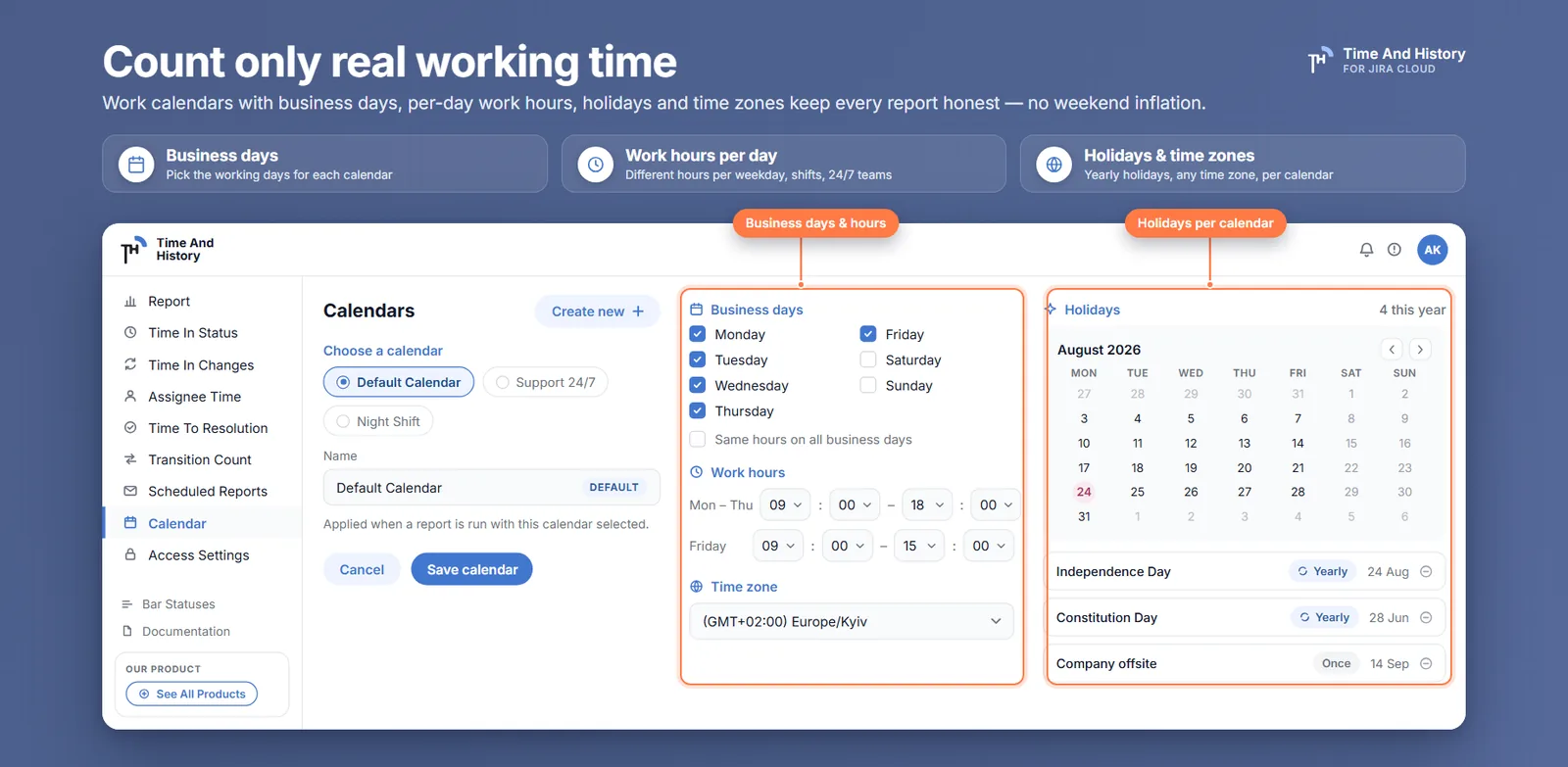
Your Monday stand-up says the ticket is three days old. The team spent six hours on it. Both numbers come out of Jira, and the one on the screen is the one nobody in the room believes — because Jira reports every duration on the wall clock, and Jira time in status excluding weekends is not a setting you can switch on: Jira stores the moment a field changed and nothing about the hours in between. The short answer is a work calendar — business days, per-day hours, a time zone and recurring holidays — and in Time And History one selection recomputes every duration in the four reports that measure time. This covers what a calendar holds, what it deliberately does not, and which status changes places once business hours apply.
Why Jira time in status counts weekends
Wall-clock durations are easy to compute and hard to defend. A support ticket raised at 14:40 on Friday and answered at 09:10 on Monday shows up as two days and eighteen and a half hours. Nobody on the team worked those hours, and everyone in the room knows it, so the number gets argued with instead of acted on.
A work calendar removes that argument. On a Monday-to-Friday, 09:00–17:00 calendar the same ticket reports two and a half hours — two hours and twenty minutes before Friday's close, ten minutes after Monday's open. That is a figure the team recognises and can actually try to improve.
What Jira does about weekends without an app
Every native option answers its own question, and several answer it well. The column that decides whether the number survives a meeting is the last one. This table is only about the clock; what each native option can and cannot measure is the fuller comparison, JQL's history operators and Atlassian Analytics included — both return elapsed time like everything else here.
| Native option | What it counts | What it does about weekends and business hours |
|---|---|---|
| Control Chart | Time per work item across the board columns you select | Nothing at all — Atlassian's page describes no weekend, holiday or working-hours behaviour, and the chart offers no setting for a working day |
| Average Time in Status gadget | "The average number of days work items have spent in status", per Atlassian | Days, not hours — and Atlassian's Cloud catalogue documents no configuration options at all, nor any per-issue rows. Per Atlassian's suggestion tracker (JRACLOUD-77733) and community reports it covers resolved work items, so a growing Blocked queue stays invisible |
Jira Automation .diff() | The only native way to compute a duration and store it in a field | Units run from millis to years plus businessDays; there is no businessHours unit. Whole Monday-to-Friday days mean Friday 16:55 → Monday 09:20 scores the same as a full Tuesday, and a rule only sees transitions after it is enabled |
| Jira Service Management SLAs | One configured interval, with start, pause and stop conditions | Genuinely calendar-aware, and the only native clock that is: working days and hours, default 09:00–17:00, more than one slot per day. It measures the one interval you configured, in service projects only — so it answers did we hit the target and never which status ate the week |
Only two of the four know what a working day is, and neither will rescue a Software project: businessDays deals in whole days, and SLA calendars exist only in service projects.
If you do work in a service project, this is a complement rather than a substitute: the SLA says whether the target was hit, and a work calendar is what puts every status on the same clock it already uses, so the post-mortem runs on the same hours as the promise.
There is a fifth option the table cannot hold, and it is the one most teams reach for: export the transitions and subtract the weekends in a spreadsheet. It works, once. NETWORKDAYS counts whole days, so it carries the same defect as businessDays — Friday 16:55 to Monday 09:20 scores a full day — and holidays are a range you maintain by hand on a second sheet. Then multiply it out: fifty issues across five statuses is two hundred and fifty intervals to recompute every time somebody asks for this month's version, and the arithmetic is yours to defend when they do.
What a Jira work calendar has to know — and what it deliberately does not
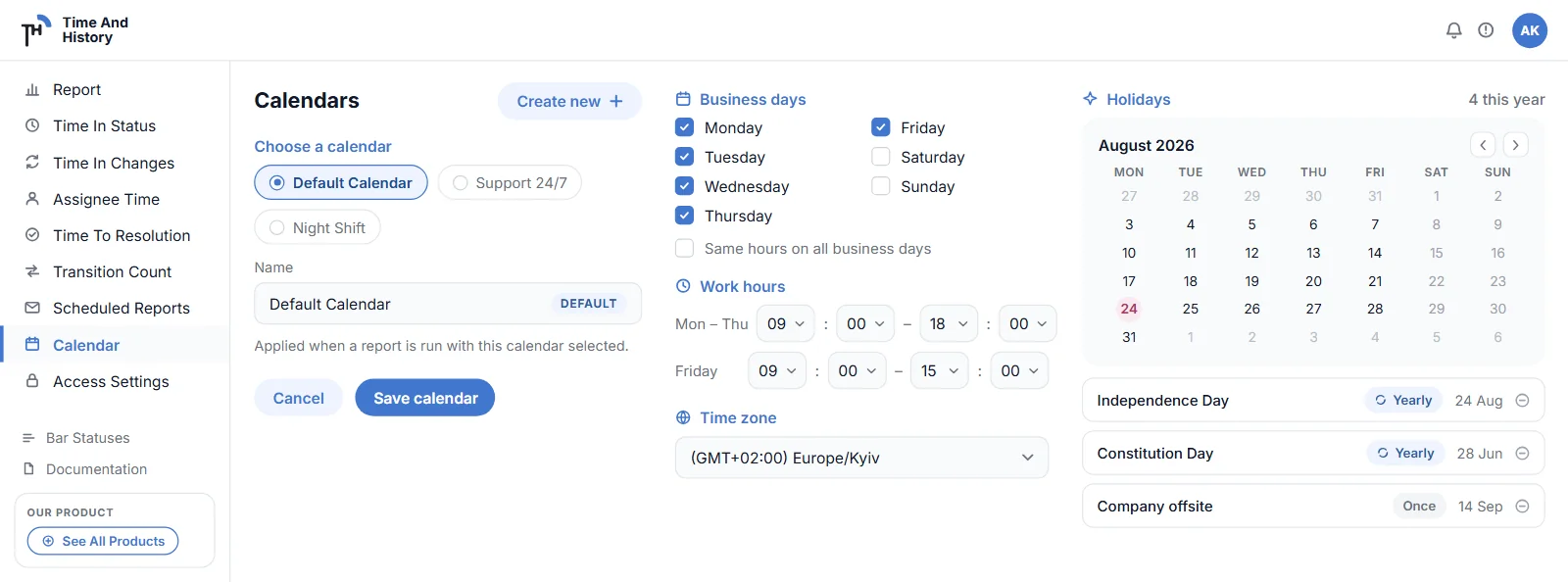
A work calendar in Time And History is a handful of settings, and the documentation has the field-by-field list. What follows is what each one decides, in increasing order of how often one of them turns out to be why two people's numbers disagree.
- The name. Up to 25 characters, and the only thing anyone else sees when they ask which clock a figure was measured on. "Default Calendar" tells them nothing; "Support 24/7" ends the question.
- The time zone. One IANA zone per calendar. It is what makes "09:00" mean the same thing to the report as it does to the person reading it, and it is the setting a distributed team gets wrong first.
- The business days. Which days a team works is a decision, not a fact. A support rota that covers Saturday and a delivery team that does not cannot share one calendar, and the moment they try, one of them is reading somebody else's week.
- The work hours. One shared range across the business days, or an individual range per weekday when Friday finishes early. This is where "we work nine to five" gets tested against the people who start at 07:00.
- The holidays. Picked on a mini calendar with a description, and ticked Repeat every year when the date is fixed — Christmas is entered once and never again, and the saved list shows it with a Yearly badge. Only the movable ones — Easter, a lunar new year, a substitute day — come back each year, which is a five-minute edit in January.
You start on a Default Calendar — Monday to Friday, 09:00–17:00, GMT — which is a reasonable stand-in for exactly nobody. Treat it as a placeholder, not a setting you inherited.
That is the entire maintenance story, and it is worth saying plainly, because the objection to any reporting setup is that somebody has to keep it alive. A calendar is not a rule that runs, a custom field that can be renamed, or an automation that breaks the next time the workflow changes. Nothing collects, nothing fires and nothing falls behind while you are on leave. Build it once, and the only recurring task is that handful of movable holidays in January.
Two things it does not contain, and both are worth knowing before you build one. There are no breaks inside a working day — work hours are one range per day, so a lunch hour cannot be carved out of the middle of one. On a 09:00–17:00 calendar that is one hour a day applied equally to every status, which inflates every duration in the same proportion and leaves the ranking you are reading intact. And a calendar is not attached to a project: it is a choice in the report controls, not an attribute of a project or a board — which is what lets a Warsaw team and a Manila team read the same board honestly.
How to set up Jira time in status excluding weekends
One thing to settle before you start: creating and editing calendars needs Jira admin rights, or membership of a group granted the Calendars page in Access Settings. Choosing which calendar is active is open to every user.
- Open the calendar settings. Go to Jira Settings → Apps → Time And History → Calendars, or open the calendar selector on any report and use Create new.
- Create a calendar and name it. The Name takes up to 25 characters — name it after the team or the office it describes, because that name is what identifies the clock later.
- Set the working week. Tick the weekdays the team works and set the Work hours: one range for every day, or one per day with Use the same work hours on all business days switched off.
- Pick the time zone and add holidays. Choose the IANA Time zone, then add each holiday on the mini calendar with a description, ticking Repeat every year — on by default — for fixed dates. Each holiday is added individually, and saved ones carry a Yearly badge.
- Select it on the report. Pick it in the calendar selector on Time in Status, Assignee Time, Time to Resolution or Time in Changes; the open list is headed Active Calendar. Every duration on the page is recomputed, the choice is remembered for you, and the other three reports open on it.
Nothing is stored as a duration: every number on the page is computed from Jira's own issue history when the report runs, against whichever calendar is selected. That is what makes the figure survive being questioned — the source is the changelog anyone can open on the issue, and the clock is a calendar whose name is sitting in the selector at the top of the report. It also means editing a calendar moves historical numbers as well as new ones, so agree the calendar before anyone argues about the figures.
Time in status without weekends: the status you blamed in the retro
On one ordinary issue, switching to business hours does not shrink the numbers evenly — it reorders them, and the status the retro blamed drops to last. PROJ-436, on the Default Calendar shape, created Thursday 15:30 and resolved the following Tuesday 12:10, with no holiday in the window:
| Status | Entered → left | Wall clock | Business hours |
|---|---|---|---|
| To Do | Thu 15:30 → Fri 11:00 | 19h 30m | 3h 30m |
| In Progress | Fri 11:00 → Fri 16:20 | 5h 20m | 5h 20m |
| In Review | Fri 16:20 → Mon 09:40 | 65h 20m | 1h 20m |
| Testing | Mon 09:40 → Tue 12:10 | 26h 30m | 10h 30m |
| Total | Thu 15:30 → Tue 12:10 | 116h 40m | 20h 40m |
Both totals check out on their own: five calendar days less 3h 20m is 116h 40m, and 1h 30m Thursday plus eight hours each on Friday and Monday plus 3h 10m Tuesday is 20h 40m.
On the wall clock In Review is the worst status at 65h 20m, and that is the number that goes into the retro; in business hours it is the best at 1h 20m, because it never did anything but straddle a weekend. Testing is the real consumer, and In Progress does not move at all.
Statuses that hold active work barely move — people were working during business hours anyway. Queue statuses collapse: In Review gives back 64 of its 65 hours, because that is where the nights and weekends were hiding.
That reordering is the whole argument for a calendar, and it takes about two minutes to check on your own board: build one Monday-to-Friday calendar on the team's real hours, select it on last sprint's Time in Status report, and watch which status changes places. Time And History is free for up to 10 users, so the first team can test it without a purchase order.
It is also usually the first genuinely new thing a team learns from the report; how Time in Status turns transitions into durations covers where those per-status numbers come from in the first place. And Time And History has no separate cycle-time metric — what your team calls cycle time is the sum of the statuses you count in the Time in Status report, and the calendar applies to every one of them. If you would rather name two statuses than add up columns, the time between two statuses measures In Progress → Done as its own column, against this same calendar.
Business hours across time zones and regional holidays
Create one calendar per team, office or support rota. Each carries a single IANA time zone, so "09:00–17:00" means nothing until it says whose 09:00. Warsaw opens when it is already 15:00 in Manila — six hours in summer, seven in winter — and for that stretch the two calendars disagree about whether the working day has started at all. Holidays belong to a calendar rather than to the site, which is why a regional team needs its own rather than a shared one.
Say the consequence out loud, because it is the first objection anyone raises: two people can open the same Jira project, pick different calendars and get different numbers, and both are right. That calls for a decision rather than a fix — agree which calendar the shared dashboard means, and write it next to the figures. The mechanism is already on the page: the selector at the top of the report shows the active calendar by name, so "which calendar" is a question anyone can answer by looking, not a matter of whose memory is better.
Does the time format undo the work calendar? No — but 1d is not one business day
Durations render in four time formats: HM (1h 43m, the default), Decimal Hours, DHM and Decimal Days. Switching between them changes only the unit the same working time is displayed in — the underlying value is always the seconds counted against your active work calendar. No format turns business hours back into wall-clock time.
The one thing to watch is the word "day". In DHM and Decimal Days a day is a 24-hour block of accumulated working time, not one business day: on an 8-hour calendar, 1d means twenty-four counted hours, which is three working days. Read a decimal-days figure as "three shifts", not "three days on the wall".
A status holding 26 working hours reads 26h 0m, 26, 1d 2h 0m and 1.08 across the four formats — the same 26 hours, three and a quarter working days.
So the failure mode is not choosing the wrong clock. It is choosing twice: one dashboard on wall-clock time, another on business hours, both labelled the same way.
One calendar choice, four Jira reports and every gadget you look at
The calendar is not a per-report setting either. One selection drives every duration in all four reports — Time in Status, Assignee Time, Time to Resolution and Time in Changes — so the switch you flip on Time in Status is the one the other three already show. That is what lets an SLA number and a workload per assignee be read side by side: same hours, same holidays, same zone. The fifth report, Transition Count, is the one a calendar cannot move: it counts how many times a status pair occurred, and a count has no clock.
It reaches past the report pages too. Gadgets carry no calendar of their own — it is not one of the gear's fields — so each time-based one inherits the calendar of whoever is looking at the dashboard, which is how you put the same business-hours numbers on a Jira dashboard. And anything exported to XLSX or CSV carries the same working seconds as the screen, so a figure quoted from a spreadsheet still matches the report.
Jira time in status excluding weekends FAQ
Does Jira exclude weekends from time in status?
No — every native duration in Jira Cloud is elapsed time, including nights, weekends and holidays. The exceptions are Jira Service Management SLA calendars, which exist only in service projects, and Automation's businessDays unit, which counts whole Monday-to-Friday days. A work calendar switches every Time And History report that measures time — Time in Status, Assignee Time, Time to Resolution and Time in Changes — to business hours.
How do I set up business hours for Jira reports?
Open Jira Settings → Apps → Time And History → Calendars, or the calendar selector on any report, then create a calendar, tick the weekdays your team works, set the work hours, pick the IANA time zone, add holidays and save. Select it on any report and every duration is recomputed against it, with the choice remembered for you. Creating and editing calendars needs Jira admin rights or membership of a group granted the Calendars page; selecting which one is active does not.
Can I exclude holidays from Jira time metrics?
Yes, by adding them to a work calendar — each holiday is picked on a mini calendar with a description, and one falling on a business day is subtracted from every duration. Fixed dates are ticked Repeat every year and never touched again; only movable holidays are re-entered.
Does changing a work calendar change past reports?
Yes. Nothing is stored as a duration — every number is computed from Jira's own issue history when the report runs, against whichever calendar is selected — so editing a calendar's days, hours, zone or holidays moves historical figures as well as new ones. That is why it is worth agreeing the calendar before anyone quotes a figure from it, and it is also why last quarter is on screen this afternoon rather than a quarter after you switch something on.
Why do two people see different durations for the same issue?
Because the active calendar is a personal setting, not a property of the project, the report or the gadget. Two people on different calendars read different — and equally correct — durations from the same issue, the same table and the same dashboard card. The selector at the top of the report names the calendar in use, so the answer is always visible; agree one for anything shared, and write it next to the figures.
Does Jira Automation support business hours?
No — Atlassian's documented .diff() units are millis, seconds, minutes, hours, days, weeks, months, years and businessDays, and there is no businessHours unit. businessDays counts whole Monday-to-Friday days, and a rule only measures transitions after it is enabled, so it can never describe last quarter.
Can different teams use different work calendars?
Yes — create one calendar per team, office or support rota, each with its own business days, work hours, time zone and holidays, and every person picks their active calendar in the report controls. Calendars are not assigned to projects, so the same project read against two calendars gives two different, equally correct sets of numbers.
Count the hours your team actually worked
If your Monday numbers include Saturday, the fix is a calendar, not a caveat in the meeting. Build one that matches the team's real week — days, hours, zone, holidays — select it on last sprint's report, and let the ranking of your statuses rearrange itself. Two minutes to set up, and nothing left running for anyone to maintain.
Work calendars are part of Time And History for Jira Cloud — Time in Status, Assignee Time, Time to Resolution and Time in Changes, all counted in business hours, plus Transition Count, which counts status changes rather than hours. Install it from the Atlassian Marketplace and put last sprint on a calendar your team recognises — free for up to 10 users. The work calendar documentation has the rest of the settings. Verified 6 September 2026.